How to check AppleCare status on a Mac
Three surfaces show AppleCare status on a Mac: checkcoverage.apple.com (anonymous, by serial), mysupport.apple.com (Apple Account with a downloadable Proof of Coverage PDF), and Settings → General → AppleCare & Warranty on the device itself.

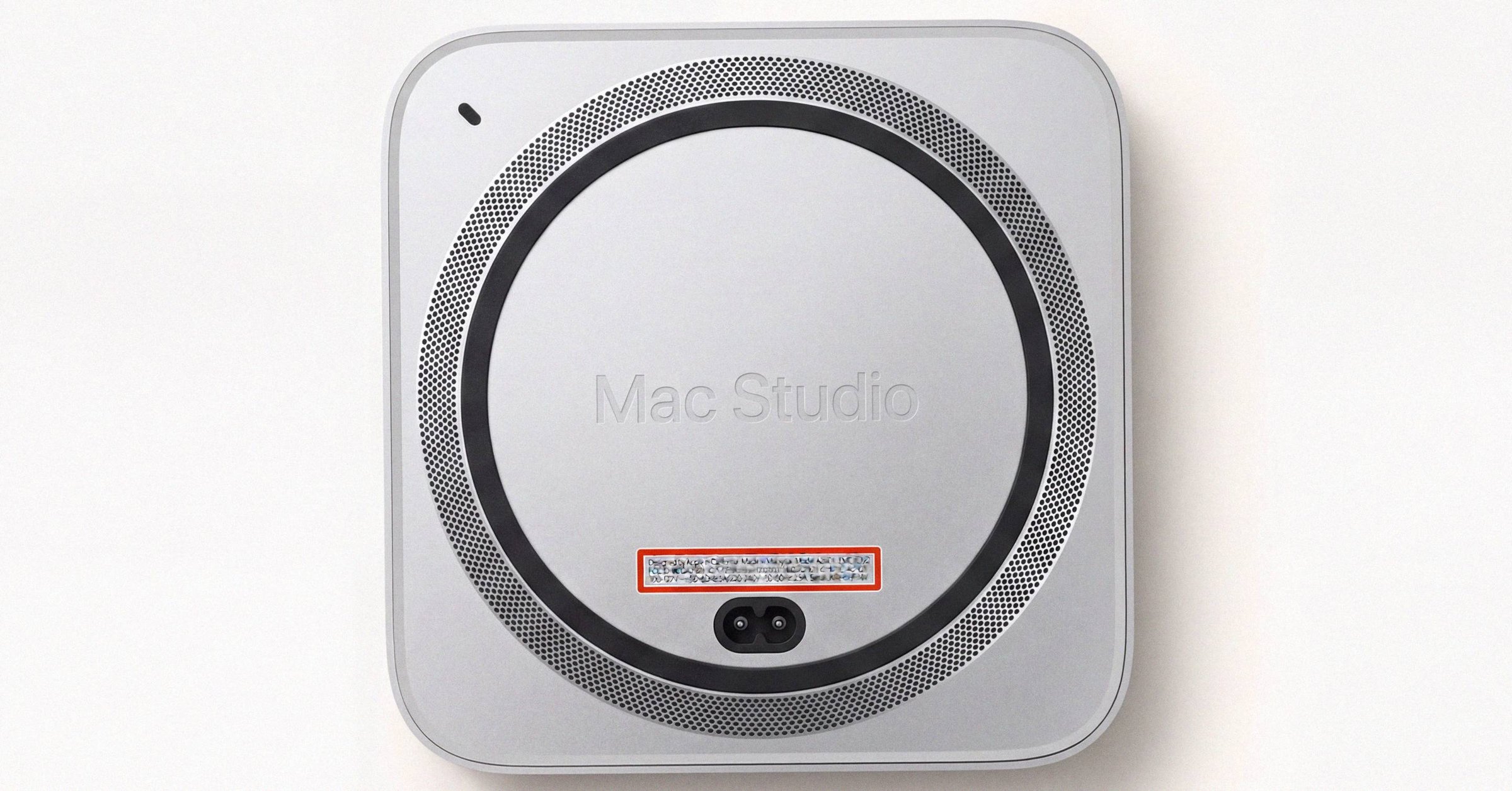
There are three places to check AppleCare or AppleCare+ status on a Mac. They read from slightly different caches and can briefly disagree, but they answer the same underlying question: is this Mac under coverage, and through when. The three surfaces are the public Coverage Check page, mysupport.apple.com when you have the Apple Account, and the on-device Settings panel.
This is the practical walkthrough. For the head-term reference covering every Apple device, see the 2026 Apple Coverage Check field-and-result-state reference.
The three surfaces, in order of access#
1) checkcoverage.apple.com (anonymous, by serial)#
The free, no-sign-in tool at checkcoverage.apple.com. Enter the Mac's serial number, complete the captcha, and Apple returns the coverage summary. No Apple Account required. This is the surface most second-hand buyers use, because the seller can share the serial without sharing account access.
For a Mac, the page returns the marketing model name, the Estimated Purchase Date with a Valid Purchase Date indicator, Telephone Technical Support status, Repairs and Service Coverage status, and an Estimated Expiration Date. That is the full field set.
2) mysupport.apple.com (Apple Account, richer view)#
Sign in at mysupport.apple.com with the Apple Account that owns the Mac. The page lists every device on the account, with full coverage details for each.
The single feature that makes this surface worth knowing about: a downloadable Proof of Coverage PDF, available when the account has two-factor authentication enabled. The PDF is a one-page Apple-branded document with the serial, model, purchase date, and coverage end date. Apple's reference is support.apple.com/en-us/102607. Useful for warranty claims handled through a third party, for resale listings where the buyer wants a verifiable document, and for institutional asset records.
3) On-device (Settings → General → AppleCare & Warranty)#
The on-device panel is usually the freshest of the three surfaces because it reads the Mac's own provisioning record rather than a server-side cache.
To get there:
- Apple menu → → About This Mac → More Info → System Settings → General → AppleCare & Warranty.
- Or System Settings → General → About → and scroll to the AppleCare & Warranty section.
The panel shows the same fields as Coverage Check, plus a button to manage coverage directly from the Mac.
Finding the Mac's serial number#
All three surfaces need the same serial. There are three places to find it on a Mac, and they all agree.
- Underside of the case. Etched in small text near the regulatory markings.
- About This Mac. Apple menu → About This Mac. The serial appears in the summary panel.
- System Settings → General → About → Serial Number. Tap or click to copy.
If the Mac will not boot, the case etching is your only option. Note that a Mac that has had its logic board replaced will have a different serial in firmware than the etched serial; the firmware serial is what Apple's database uses for Coverage Check, and what About This Mac displays. For a Mac that does not boot at all, the broader retrieval playbook is how to find your Mac's serial number when it won't boot.
What the result looks like on a Mac specifically#
A valid Coverage Check result on a Mac returns a deliberately minimal field set.
- Model name. The exact marketing name. For example, "MacBook Pro 14-inch" or "Mac Studio (M3 Ultra, 2025)." Since the post-2021 randomized serial does not encode configuration, this lookup is the only way to confirm the model from the serial alone.
- Estimated Purchase Date. The date Apple's database first saw a valid sale event, either from a reseller's sales log or from the device's first-activation handshake. Not necessarily the retail receipt date. If yours is wrong, see how Apple's Estimated Purchase Date gets populated and how to correct it.
- Valid Purchase Date indicator. A green check meaning Apple has validated the date against a reseller record.
- Telephone Technical Support: Active / Expired. Apple includes 90 days of complimentary phone support from purchase. After 90 days this line flips to Expired even if hardware warranty is still active. AppleCare+ keeps phone support active for the full plan term.
- Repairs and Service Coverage: Active / Expired. With an Estimated Expiration Date when active. The explanatory text identifies which coverage is in force: one-year Limited Warranty, AppleCare+, or the legacy AppleCare Protection Plan still seen on some older Macs.
- Estimated Expiration Date. When the active coverage ends.
What is different about Macs#
Three differences are worth knowing.
Macs are never eligible for AppleCare+ with Theft and Loss. That plan exists for iPhone, iPad, and Apple Watch only. On a Mac result page, the Theft and Loss plan line simply never appears. If a seller claims their Mac has Theft and Loss coverage, that is not a real product. The Mac equivalent is AppleCare+ alone, which covers hardware failure and accidental damage.
AppleCare+ on a Mac is a 36-month upfront term. Where iPhone/iPad/Watch AppleCare+ runs 24 months from purchase, Mac AppleCare+ runs 36 months. The Estimated Expiration Date reflects that. Mac AppleCare+ also includes coverage for certain bundled accessories.
The legacy AppleCare Protection Plan still surfaces on older Macs. Macs purchased before the AppleCare+ transition (which rolled out in stages from 2017 onward) may show "AppleCare Protection Plan" rather than "AppleCare+." Both are valid; the older plan extends hardware coverage and phone support but does not cover accidental damage. For the case where the page returns Expired and a buyer is wondering about residual options, see what 'Coverage Expired' means on Apple Coverage Check (and what to do).
When the three surfaces disagree#
Disagreements between the public tool, mysupport, and the on-device panel are common right after a new AppleCare+ purchase, a plan transfer, or an Apple-driven replacement. Each surface reads from a slightly different cache.
On-device is usually the freshest because it reads the Mac's own provisioning record. The public tool tends to lag mysupport by a few hours. Wait 24-72 hours and the three should reconcile.
If it does not, call Apple Support and reference the specific serial. Apple Support staff have GSX access (Apple's internal service database) and can reconcile the records directly. The case typically takes one call, no follow-up needed.
When the Mac is unregistered or shows the wrong owner#
A Mac purchased used may still appear under a previous owner's Apple Account in mysupport, even after a clean macOS install. The fix is on Apple's side, not yours: contact Apple Support with the serial and proof of purchase, and ask them to remove the prior association. Apple will not remove a Mac from a prior owner's account without the requesting party demonstrating ownership.
If you bought the Mac new through an unauthorized channel (parallel import, marketplace reseller, gray market) and it appears unregistered, you can register it by adding it to your Apple Account at appleid.apple.com or by opening a support case with a dated, itemized proof of purchase. Apple's support.apple.com/en-us/102865 walkthrough is the canonical reference.
The canonical Apple guidance: the warranty itself is the same whether you register or not. Registration is what lets staff authenticate the device for service. Without it, Apple-store staff may refuse warranty work when the tool shows the device as unregistered.
What this means for the reader#
For most Mac owners, the on-device AppleCare & Warranty panel is the quickest answer: open System Settings, scroll to General → AppleCare & Warranty, read the dates. The thirty seconds of Coverage Check is mostly for buyers and sellers, where the serial is the only handle either party has.
The Proof of Coverage PDF from mysupport is the surface that comes up rarely but matters when it does. If you are about to ship a Mac to a third-party repairer who needs a coverage attestation, or if you are listing a Mac and a buyer wants verifiable documentation, that PDF is the artifact you want. Bookmark mysupport.apple.com on the device's owner Apple Account so it is one click away. For a buyer who wants the same data anchored to the device (not just the serial) in a single signed report, see where Coverage Check stops and Macfax starts.
Have a serial in front of you? The Macfax lookup reads the model, year and configuration, and shows what Apple's own tools leave out.
Related posts
Apple Coverage Check for iPhone vs Mac: what's different
Apple Coverage Check uses the same URL, the same field set, and the same one-year Limited Warranty length on iPhone and Mac. The differences are where to find the serial, which AppleCare+ tiers are available, and how aggressively the country-of-sale warranty restriction applies.
Apple Coverage Check: the complete 2026 guide
Apple Coverage Check at checkcoverage.apple.com is now branded AppleCare & Warranty. This is the complete reference for what every result state means, what each field on a valid result actually says, and what the tool deliberately does not show.
Apple Coverage Check on refurbished and gray-market Macs
Apple Certified Refurbished Macs come with a fresh one-year Limited Warranty and full AppleCare+ eligibility. Third-party 'renewed' Macs do not. The model-number prefix (M, F, N, P, 3, 5) and region suffix (LL/A, J/A, VN/A) tell you which Coverage Check will show.
Written by
Marcus WilliamsMarcus Williams covers Mac hardware and repair for Macfax. He spent six years on the bench at an Apple Authorized Service Provider in the Pacific Northwest before going independent, most of that time on logic-board repair, display assembly swaps, and the failure patterns Apple's diagnostics don't surface. He writes about what's inside a Mac, what breaks first, and what a serial number can and can't tell you about a unit's history.
More posts by Marcus →