Used iMac buying guide: the M1 24-inch display flicker and what else to check
Used iMac inspection in 2026, anchored on the documented M1 24-inch horizontal-line flicker, plus dust under the glass, stand and speaker checks, and why the monolithic chassis turns a panel fault into a write-off.

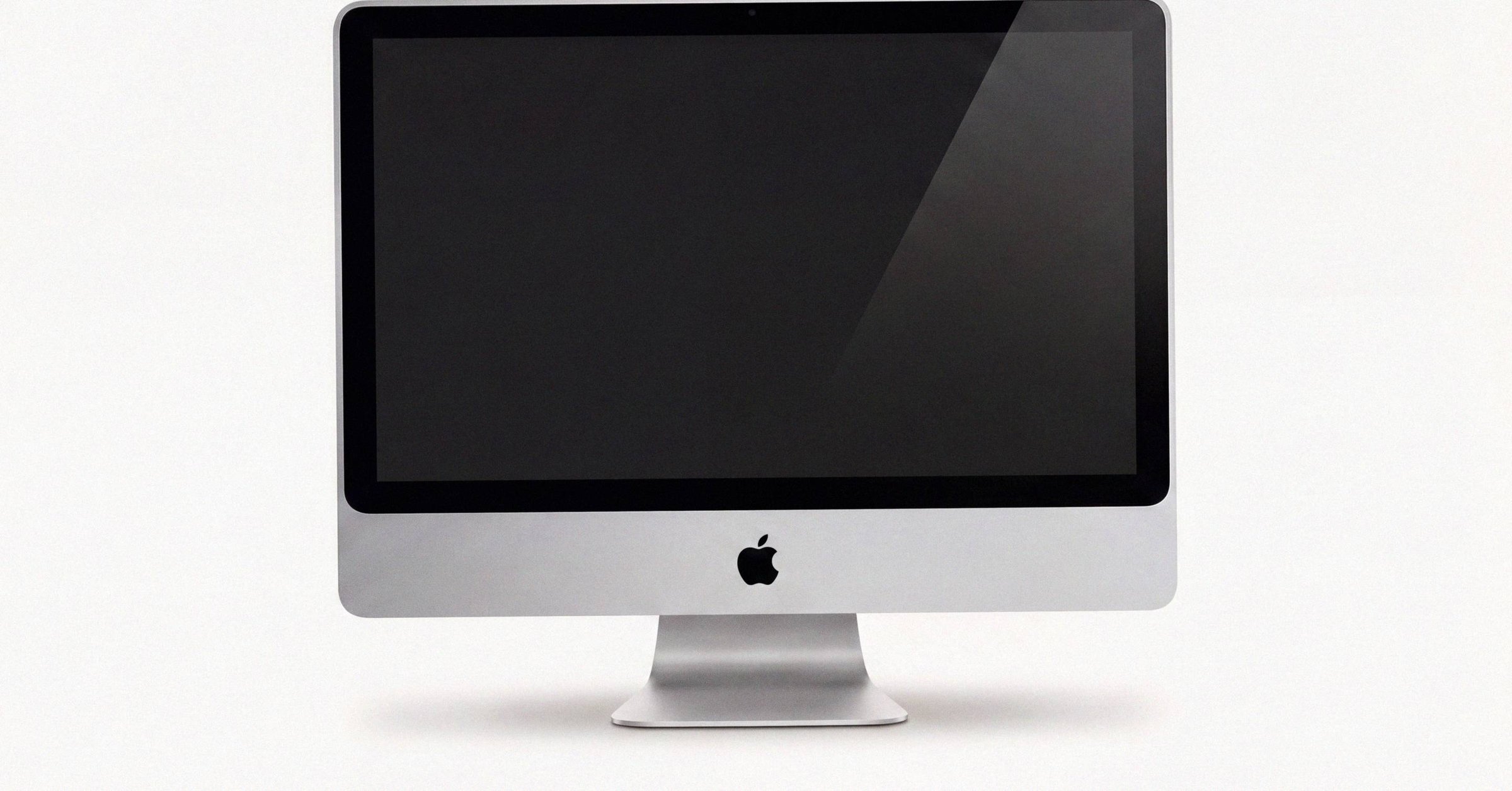
Used iMac buying guide: the M1 24-inch display flicker and what else to check#
The most diagnostic check on a used iMac in 2026 is a horizontal-line flicker along the bottom edge of the display. Reported on some M1 24-inch units (2021) after roughly three or more years of use, the defect appears as parallel horizontal lines or aggressive flickering, exacerbated by heat saturation inside the sealed, unventilated display. Because the iMac is monolithic, a localized display failure requires a panel replacement that often exceeds the unit's residual market value. On a $700 to $900 used M1 iMac, a screen repair is a write-off, not a negotiation.
This post is the in-person inspection checklist for a used iMac, anchored on the flicker defect and walking through the rest of the iMac-specific failure modes the listing photos cannot show. The broader cross-model pre-owned Mac buying playbook for 2026 sets up the channel and provenance context the iMac-specific checks land on top of.
What the flicker actually is#
Users on the Apple Support Community have described an intermittent display issue on some M1 24-inch iMacs after three or more years of use: a row of parallel horizontal lines or aggressive flickering along the bottom edge of the panel, intensifying as the display warms up. The mechanism is consistent with thermal stress inside an unventilated display housing. Unlike a laptop, the iMac packs the logic board, power supply, and display drive electronics into the back of the panel itself. There are no separate fans for the screen. Heat accumulates, and on a small population of units the result is visible artifacting on the lower bezel after several years of accumulated wear.
Apple has not formally acknowledged a service program. That matters because the iMac is monolithic. The 4.5K Retina display is bonded into the chassis with the rest of the machine; there is no panel-only repair path, no field-replaceable display assembly priced as a sub-component, and no third-party panel supply. A display fault on a 24-inch iMac is a full display-assembly swap at Apple service rates, and the part-plus-labor cost is in the same range as a comparable used M1 iMac on Swappa. The economics force the same answer every time: a unit with flicker is a write-off, not a candidate for repair.
This is why the flicker check is the single most diagnostic step on the inspection list. On a MacBook Pro, a stage-light defect changes the price you offer. On an iMac, a flicker defect changes whether you walk away.
The check itself#
The check is mechanical and takes a few minutes. Run it at the meetup, before anything else.
- Open System Settings, then Displays. Drag the brightness slider all the way up. Disable auto-brightness. The defect is heat-dependent and modulated backlight makes it harder to spot.
- Open a blank text editor or a solid-white image and put it full-screen. Then switch to a solid grey background. Both reveal the banding patterns that a normal desktop wallpaper hides.
- Watch the lower bezel continuously. Heat takes time to accumulate inside the sealed enclosure, so a unit that looks clean for the first thirty seconds may show flicker at three minutes. Give it time.
- Switch to a solid black background and inspect the same region for backlight bleed at the edges. This is unrelated to the flicker defect, but black-background time is also the right moment for the next check.
Dust under the glass#
The glass on a 24-inch iMac is bonded to the chassis. There is no consumer-accessible service path for dust trapped between the glass and the panel. iFixit and the independent repair community have documented teardowns that involve cutting the adhesive seal and re-bonding the assembly, but that level of intervention sits well outside the value of any used iMac in the $700 to $1,400 secondary market.
Inspect against a solid black background and look for specks, smudges, or shadows that move with the surface of the glass rather than with the displayed content. If you find them, the price stops moving. Dust under the glass is a permanent condition.
Stand, hinge, speakers, camera#
The rest of the iMac-specific inspection list is short.
The stand should hold the display angle firmly without sagging or springing back. Cracked stands exist as a failure mode and are expensive to replace because the part is uncommon on the secondary market. Look at the base, look at the hinge pivot, look for hairline fractures around the stem.
Listen for speaker rattle. Play stereo music with bass content and listen at moderate volume. The 24-inch iMac speakers are reasonable for the form factor, but any rattle is diagnostic of a damaged driver or a loose internal panel and points to either a drop or an enclosure stress issue.
Open FaceTime or Photo Booth and verify the camera. Open Voice Memos and verify record-and-playback on the microphones.
The Intel 27-inch trap#
The 27-inch 5K iMac was discontinued in 2022 and never received an Apple Silicon successor. Used 2019 and 2020 27-inch units circulate, sometimes at attractive prices, and they are appealing to anyone who wants a large Retina display in a single appliance. They come with two structural issues.
The first is macOS support. Every Intel Mac in 2026 is on a one-to-two-year terminal runway as macOS releases continue to drop Intel hardware. The 27-inch is no exception.
The second is the Fusion Drive. Apple shipped the 27-inch with three storage tiers: a pure SSD (2TB or 4TB, in many SKUs), a 1TB Fusion Drive (a 32GB SSD bonded to a 1TB spinning hard drive), and a 3TB Fusion Drive. The Fusion Drive variants pair a spinning disk with a small flash buffer, and the spinning disk is on the same failure curve as any other 2.5-inch hard drive. By 2026, a 2019 27-inch with a healthy Fusion Drive is on borrowed time. By 2026, a 2019 27-inch with a healthy SSD is fine on storage but still on the macOS-support runway above. The refurbisher comparison across Apple Certified Refurbished, Back Market, OWC, and the second-tier shops covers which channels still carry 27-inch inventory.
The mechanical check is direct: power the iMac on, idle it for a minute, and listen for grinding or clicking from the rear of the chassis. Verify the storage configuration in System Information, Hardware, Storage. If the unit is a Fusion Drive variant, price in a near-term failure. If it is SSD-only, price in the support runway.
Coverage, Activation Lock, MDM#
Three checks dominate every used Mac purchase regardless of model: Activation Lock must be disabled, MDM or DEP enrollment must be absent, and the serial must validate cleanly on Apple's coverage tool.
Hold Option, click the Apple menu, choose System Information, and read Activation Lock Status at the bottom of Hardware. It must read Disabled. Best practice is to ask the seller to run Erase All Content and Settings (System Settings, General, Transfer or Reset) and proceed to the Setup Assistant language picker in front of you. If you reach the language picker, the device is ready to be re-enrolled to your Apple ID at home. The full sequence lives in the pre-purchase Activation Lock verification for any Mac, and the Activation Lock guide for any Mac explains why the iMac generation matters here. Pre-T2 Intel iMacs are exempt, every Apple Silicon iMac is not.
From Terminal, run sudo profiles status -type enrollment. A clean Mac returns Enrolled via DEP: No / MDM enrollment: No. System Settings, General, Device Management must show "No profiles installed." Sellers can temporarily mask MDM by going through initial setup without Wi-Fi, so always mandate connecting the iMac to a mobile hotspot or local Wi-Fi during inspection (see how to detect MDM enrollment and the offline-bypass trick for the full detection playbook).
Run the chassis serial through checkcoverage.apple.com on your phone. The tool confirms model, age, warranty status, and whether AppleCare+ is active. For the field reference that walks through every result state, see the Coverage Check result reference for a used Mac purchase, and the Coverage Check 2026 guide that explains the registration-versus-retail "Estimated Purchase Date" gotcha covers the trap on a used iMac purchase.
What this means#
The flicker defect changes the order of the checklist on an iMac. On a MacBook Pro, you can pay for a battery, a top case, a port, or a hinge and still come out ahead on a careful purchase. On a 24-inch iMac, a panel-related defect is an end-state. The economics of monolithic construction mean that the check you run before money changes hands is the one that matters most.
Set brightness to maximum. Disable auto-brightness. Display a solid white background for several minutes. Watch the lower bezel. If the bezel is clean, the rest of the iMac inspection list is the cost of doing the inspection at all. If it is not clean, the listing is no longer for sale at any price.
Buying a Mac? Every listing on the Macfax shelf shows the exact configuration and an asking price in the open, with a signed report where the seller ran the checks.
Related posts
Activation Lock check on a Mac: the 90-second verification before buying
Activation Lock on a T2 or Apple Silicon Mac binds the device to the seller's Apple ID. The 90-second check before paying: Option-click Apple menu, System Information, Hardware, read Activation Lock Status. It must say Disabled.
How to buy a refurbished or pre-owned Mac in 2026: the complete guide
How to buy a refurbished or pre-owned Mac in 2026. Apple Certified Refurbished vs Back Market vs OWC, the three provenance checks before paying, the inspection protocol, and the time-bounded recourse windows.
Apple Certified Refurbished vs Back Market vs OWC: where to buy a refurbished Mac
Apple Certified Refurbished vs Back Market vs OWC: side-by-side comparison on warranty length, return window, typical discount, grading standards, and the configurations each refurbished Mac channel actually carries.
Written by
Priya PatelPriya Patel covers the used-Mac market for Macfax. Before joining she spent six years as a power-seller on eBay, moving roughly 1,200 Macs through the platform and building a private dataset of sale-price-vs-listing-price across every Mac SKU back to 2017. She writes about pricing, buyer and seller behavior across the major marketplaces, and where the secondary market actually clears versus where it's listed.
More posts by Priya →