Find My Mac: the complete owner's guide
Find My Mac is the master switch behind Activation Lock, and Apple gates turning it off behind the Apple Account password. Here is how to set it up, how the offline-finding BLE network actually relays location, and the state machine across Enabled, Find My network, Suspended, Pending, and Signed-out.

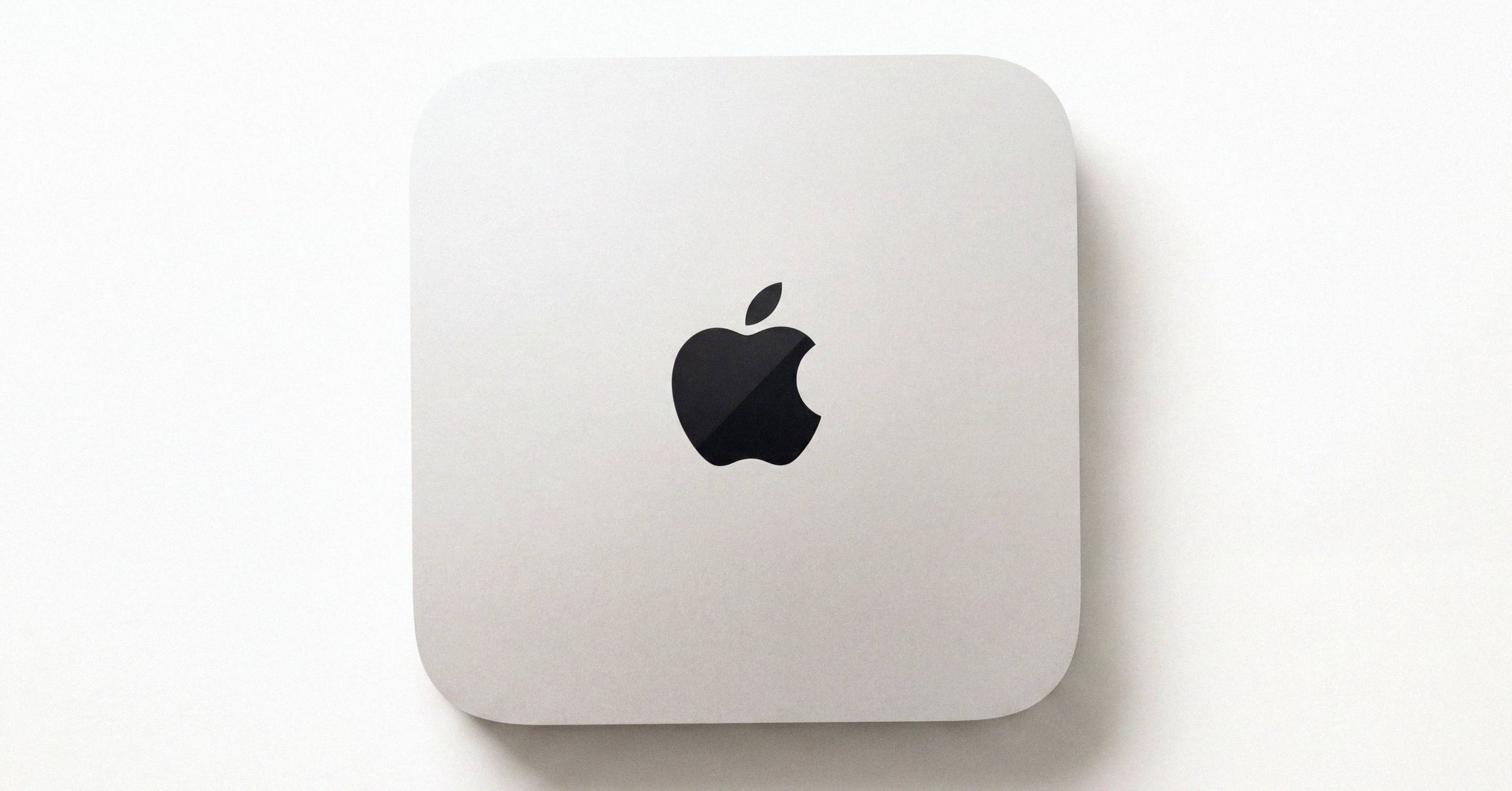
Find My Mac: the complete owner's guide#
Find My Mac is the master switch behind Activation Lock. Turning it on enables locate, remote lock, and remote erase; turning it off requires the Apple Account password, which is the same credential Apple gates Activation Lock behind. There is no separate "Activation Lock" toggle in System Settings; the lock arms automatically the moment Find My Mac is on. Apple ties the two features together by design.
The setup is brief and the two sub-options (Find My network and Send Last Location) cover the interesting behavior. The state machine across Enabled, Find My network, Suspended, Pending, and Signed-out is what makes the feature reliable in practice. Find My Mac arrived on macOS Catalina 10.15 in October 2019; the Find My network for Mac arrived with Big Sur 11 in November 2020.
If you want to verify a Mac's Find My state on a signed report before paying for a used Mac, the signed Find My and Activation Lock readout covers it.
The setup#
System Settings → [your name] → iCloud → Find My Mac → Turn On. The Setup Assistant prompts for this during initial Mac setup; the toggle remains in System Settings afterward. Turning it on requires no password (you are already signed in); turning it off requires the Apple Account password.
Two sub-options under Options matter once Find My is on. "Find My network" (offline finding) broadcasts a rotating encrypted Bluetooth Low Energy beacon that nearby Apple devices relay back to you. "Send Last Location" beams the Mac's location to Apple just before the battery dies, which is sometimes the only fix you get when a thief lets a stolen Mac run out of power.
For the map to actually populate, Privacy and Security → Location Services must be on with Find My Mac enabled under System Services. Find My can be on at the iCloud level and silent on the map if location services are off. A surprising number of users hit this exact configuration and conclude Find My is broken when in fact location reporting is simply disabled.
How offline finding actually works#
The Find My network is an anonymous, encrypted mesh of hundreds of millions of Apple devices. Even when a Mac is asleep, offline, or has had its drive erased, its security processor keeps low-energy Bluetooth beacons active as long as residual battery power remains. Nearby Apple devices relay the approximate location back to the owner without exposing private data.
The beacon is a rotating key, regenerated frequently from a shared secret known only to the owner's other devices. An external observer cannot link a series of beacons to a single Mac, and Apple itself cannot decrypt the location reports without the owner's key material. The system was designed end-to-end-encrypted from the start so that participation in the mesh does not create a tracking surface for adversaries (including Apple) who do not hold the owner's key.
The practical consequence: a Mac can receive a remote wipe or lock command even with no Wi-Fi or cellular link, as long as it is within BLE range of any Apple device with the Find My network enabled. This is also why a Mac that has been off for weeks can still appear on the map when a passerby's iPhone walks within Bluetooth range. The feature requires macOS Big Sur 11 or later and works as long as Bluetooth is on and Airplane Mode is not engaged.
The state machine#
Five states are worth knowing.
Off / signed out. No iCloud account on the Mac. Find My cannot be enabled, no record on Apple's servers.
Enabled. Apple Account signed into iCloud, Find My Mac turned on. The Mac is tracked when online; remote execution (lock, erase) is active. The hardware identity is bound to the account on Apple's activation servers, which is what arms Activation Lock.
Enabled + Find My network. As above, plus offline finding. The Mac broadcasts a rotating encrypted BLE beacon that nearby Apple devices relay. The Mac can be located, locked, or erased even when asleep, offline, or with its drive erased, as long as battery power remains.
Suspended. Two specific cases. Thermal threshold exceeded in sleep, in which case BLE beaconing and Play Sound are suppressed until the Mac cools. Or repeated MDM Volume Purchase Program deployment failures, in which case app updates are paused. In both cases, the lock record stays active on Apple's servers; only polling is paused.
Pending. Sign-out or "Remove from Account" was initiated while the Mac was offline. The change is queued and completes the next time the Mac connects. The subtle wrinkle: if a device is removed from Find My while completely offline, the lock is suspended immediately, but if that same device reconnects more than 30 days later with the original Apple Account still signed in locally, Activation Lock can be automatically re-enabled on Apple's servers, restoring the locked state. Confirm removal with the Mac online to avoid the re-arming edge case. The full procedure for owner-side removal is in the legitimate owner-side unlock playbook.
Signed-out. Clean sign-out via System Settings or via the Erase Assistant in Erase All Content and Settings. Local cryptographic keys are discarded, the record on Apple's servers is unregistered, and the Mac boots to a clean "Hello" Setup Assistant ready for new activation.
Find My is the master switch#
There is no Activation Lock without Find My Mac. The lock arms only when Find My is on, and turning Find My off with the Apple Account password disarms it instantly. This is by design: Apple did not want a UI in which a user could enable Activation Lock without enabling Find My, because the lock is functionally dependent on the activation record that Find My creates and maintains.
The relationship goes the other direction too. Erase All Content and Settings (EACS), introduced in macOS Monterey 12 for T2 and Apple silicon Macs, turns Find My and Activation Lock off in one operation. The Erase Assistant prompts for the administrator password and the Apple Account password, signs the user out of iCloud, turns off Find My, destroys the per-device cryptographic keys, and restarts to a clean Setup Assistant. The full breakdown of what EACS does on a Mac is in the seller pre-list checklist.
For the relationship between Find My Mac and Activation Lock spelled out in glossary-style language, the existing what Find My Mac is and how it relates to Activation Lock is the shorter reference.
Corrupt-plist edge case#
A known issue: the iCloud pane shows Find My Mac as enabled, but the device's Apple Account Device Info (System Settings → [your name] → Devices) shows it as "Off," and the Mac fails to appear in Find My elsewhere. Common causes are secondary local accounts signed into separate Apple Accounts, multiple macOS installs across partitions, or corrupt property lists.
The resolution sequence:
- In
~/Library/Preferences/, movecom.apple.findmy.findmylocateagent.plistto the Trash and empty it. - In
~/Library/Caches/, delete all Find My-associated folders. - Restart.
macOS rebuilds clean plists and caches and re-synchronizes with Apple's servers. The symptom typically clears within a few minutes of the next boot.
If the symptom persists, the next thing to check is whether a second macOS install on a different APFS volume has its own Find My state. A Mac with both macOS Sonoma and macOS Sequoia installed on separate volumes can present Find My state from whichever volume was the most recent boot, and the volumes maintain independent records on Apple's side until reconciled.
Map shows the wrong location#
Find My reports the approximate location of the Mac through Bluetooth relay or, when the Mac is online, through Wi-Fi positioning. Both can be off by hundreds of meters in dense urban environments, and Wi-Fi positioning is less accurate on a Mac than on a phone because Macs do not have GPS. The location is "approximate" by design.
If the location is wildly wrong (a different city), the most common cause is that the Mac last reported its location from a different network with stale Wi-Fi geolocation records, or that the Mac is currently relaying through a passerby's iPhone in a different cell. The location updates when the Mac next connects to a known network or when the next BLE relay reaches a device with GPS. Lost Mode and the "Mark As Lost" workflow are the next escalation if you suspect the Mac has moved.
What changes when you sign out of iCloud#
Signing out of iCloud through System Settings → [your name] → Sign Out is the clean exit. macOS prompts for the Apple Account password, then offers to keep or remove iCloud data locally, then signs out. The sign-out turns off Find My and Activation Lock as part of the same operation, removes the Mac from the account's device list, and discards the local cryptographic keys. The Mac is then ready for a new owner to sign in with their own Apple Account.
EACS is the equivalent path with a full wipe. The Erase Assistant runs the same sign-out plus turn-off-Find-My plus destroy-keys sequence and additionally reformats the volume and restarts to the multilingual "Hello" Setup Assistant.
A sign-out that fails to remove the Mac from your device list is the symptom that drives most of the pending-state confusion. If the Mac was offline at sign-out time, the change is queued. Verify removal at iCloud.com/find from another device.
What this means for the reader#
Find My Mac is a setting most owners turn on once during setup and forget about, but it is the load-bearing piece of the Mac's anti-theft architecture. The Apple Account password is the only credential that turns it off, and that gating is what makes Activation Lock meaningful for a stolen Mac. Offline finding extends the reach to any Bluetooth-relayed location, even after a thief erases the SSD.
For owners, the two interventions that pay off are: confirm location services are on with Find My Mac enabled under System Services (otherwise the map never populates), and turn on Send Last Location (otherwise a dead-battery Mac is invisible). For owners selling a Mac, EACS turns Find My, Activation Lock, and account binding off in one operation, and verification at iCloud.com/find after EACS is the final check that the Mac has left your account. For buyers checking a used Mac, the free Find My and Activation Lock check on a signed Macfax report confirms Find My Mac and Activation Lock state on a signed report before the transaction closes.
Related posts
Activation Lock on Mac: the complete guide
Activation Lock arms automatically the moment you turn Find My Mac on, on any T2 (2018-2020 Intel) or Apple silicon Mac running Catalina or later. Here is how the lock is enforced, the four screens that get confused for it, every legitimate clear, and the in-person check that holds up before paying.
How to check Activation Lock by serial number
Apple retired its standalone Activation Lock status page in early 2017. As of 2026 no official Apple web tool reports a Mac's lock state by serial number. The reliable check is an in-person live boot.
Apple Activation Lock removal request: how the legitimate process works
Apple's Activation Lock removal request lives at al-support.apple.com and requires an original receipt from Apple or an Apple Authorized Reseller with the serial number, purchase date, and reseller details. Response time can run up to 30 days. Private bills of sale and eBay receipts are routinely rejected.
Written by
Ben CarterBen Carter covers Mac marketplace fraud and the broader industry for Macfax. His reporting background is in investigative fintech, and at Macfax he focuses on counterfeit hardware, doctored listings, gray-market refurb operations, and the structural patterns in how secondhand-Mac fraud scales. He also writes the industry reports, covering pricing trends, marketplace share shifts, and the macro picture of where the used-Mac market is going.
More posts by Ben →