Mac Startup Security Utility: Secure Boot levels on T2 and Apple silicon
Startup Security Utility on a Mac is the Recovery-only panel that exposes the Secure Boot policy. T2 Macs configure one system-wide level (Full / Medium / No Security). Apple silicon Macs configure per-volume LocalPolicy (Full / Reduced / Permissive). Activation Lock only engages at Full.

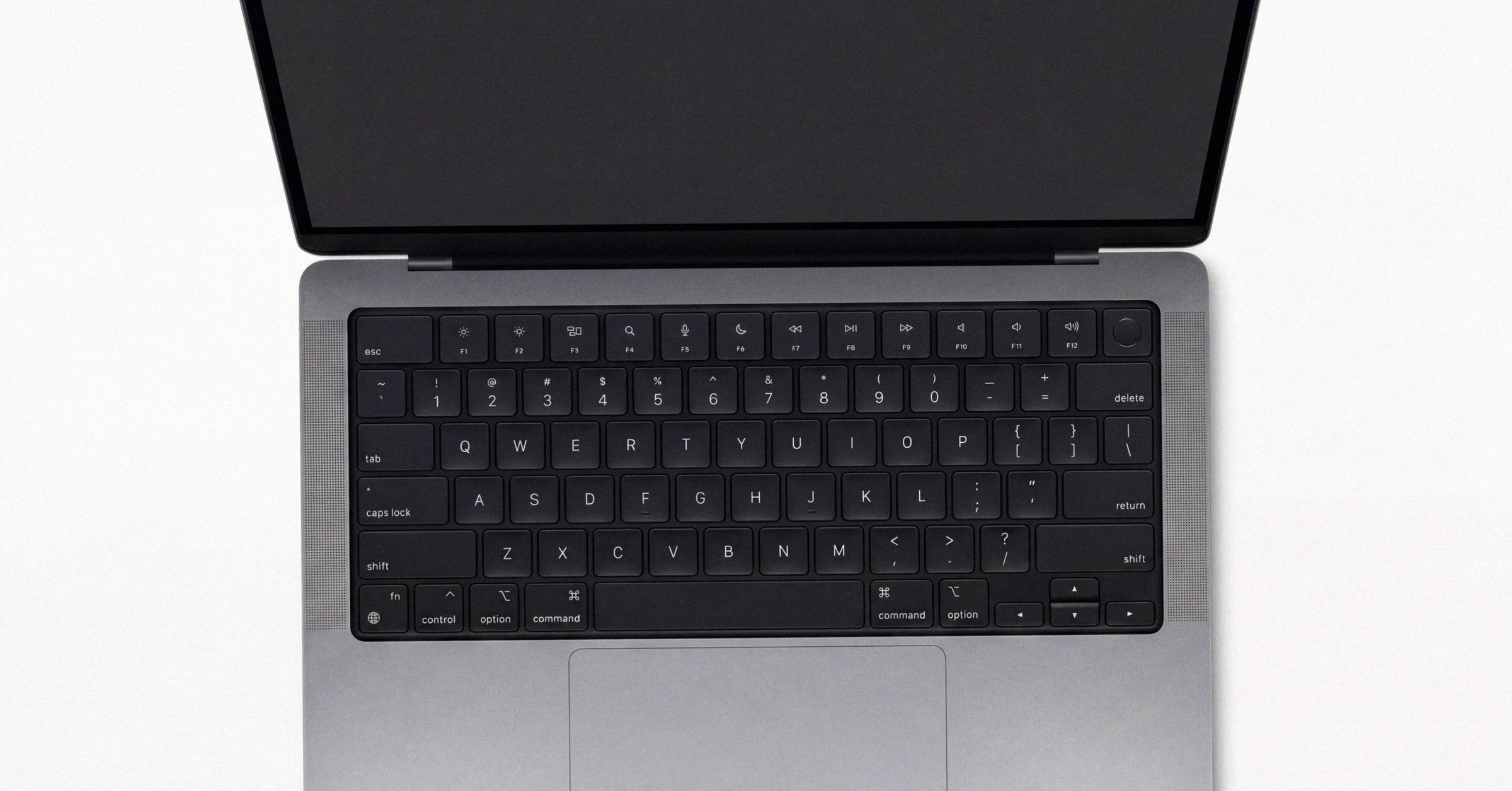
Mac Startup Security Utility: Secure Boot levels on T2 and Apple silicon#
Startup Security Utility on a Mac is the Recovery-only panel that exposes Secure Boot, the chain of checks a Mac performs at startup to ensure that only legitimate, Apple-signed software loads. Each stage verifies the next, building a chain of trust anchored in immutable Boot ROM code burned into the silicon at the factory. Both T2 Intel Macs and Apple silicon Macs have Secure Boot, but they expose it very differently, and the differences matter when you are buying or selling a Mac in the second-hand market. (Apple Support 102522) For where Secure Boot fits in the full pre-purchase Mac vocabulary, the pillar entry covers it alongside the other security terms that change with chip generation.
Secure Boot on T2 Macs#
On Macs with the Apple T2 Security Chip (iMac Pro 2017, MacBook Pro 2018-2020, Mac mini 2018, MacBook Air 2018-2020, Mac Pro 2019, iMac 27-inch 2020), Secure Boot is configured system-wide through the Startup Security Utility, which is only accessible from Recovery.
T2 Secure Boot has three levels:
- Full Security (default). The Mac will only boot the latest macOS Apple currently trusts, or a current signed Windows install via Boot Camp. The Mac contacts Apple to verify integrity at boot. Required for Activation Lock to be enforceable.
- Medium Security. The Mac will boot any version of macOS Apple has ever signed, including older or no-longer-trusted versions. No internet check at boot.
- No Security. The Mac will boot anything, including Linux distributions and unsigned operating systems. Activation Lock cannot engage at this setting.
Separately from the three-level Secure Boot policy, T2 Macs also have an Allowed Boot Media setting (sometimes labelled "External Boot"):
- Disallow booting from external or removable media (default).
- Allow.
Apple requires "Disallow" for the firmware-level Activation Lock binding to be enforceable. A T2 Mac lowered to "Allow" external boot is a Mac whose owner deliberately weakened the lock, regardless of what the three-level Secure Boot setting says.
Secure Boot on Apple silicon Macs#
Apple silicon Macs (M1 and later) configure Secure Boot per-volume, not system-wide. Each bootable macOS install has its own LocalPolicy signed by the on-die security coprocessor, and the level can differ between installs on the same machine.
Three levels:
- Full Security (default). Behaves like a current iPhone: only the latest signed macOS for that volume can boot.
- Reduced Security. Allows older versions of macOS, third-party kernel extensions, or relaxed SIP. Required for OpenCore Legacy Patcher-style setups and most kext-using software.
- Permissive Security. Allows booting custom-built XNU kernels for developers. Requires SIP off. This is the lowest setting.
Apple silicon Macs do not have a firmware password. Changes to the security policy instead require physical authentication: the user has to hold the power button at startup until "Loading startup options" appears, which is impossible to do remotely.
Why this matters when buying used#
On a T2 Mac, anything below Full Security, or anything other than "Disallow external boot," means Activation Lock is not actively enforced. A seller (or thief) may have used these settings on purpose to operate a Mac that should be locked. The defaults exist for a reason, and the chip-by-chip walkthrough of how Activation Lock changed from M1 through M4 covers the parallel Apple silicon side of the same protection model.
On an Apple silicon Mac, a system stuck at Reduced or Permissive Security is fine for many users. It usually points to a previous owner who was running OpenCore Legacy Patcher, third-party kernel extensions, or development builds. None of that is malicious on its own, but it is worth asking about: future macOS updates may behave inconsistently, and some apps and Apple services may be less reliable.
How to read the current setting#
In Recovery, both T2 and Apple silicon Macs surface Secure Boot through Startup Security Utility (Utilities menu).
For T2:
- Restart and immediately hold Cmd-R to enter Recovery.
- Menu bar: Utilities, then Startup Security Utility.
- Authenticate with an administrator password.
- Inspect or adjust Secure Boot (Full / Medium / No) and Allowed Boot Media (Disallow / Allow).
For Apple silicon:
- Shut down. Hold the power button until "Loading startup options" appears.
- Click Options, then Continue, then sign in as an admin user.
- Menu bar: Utilities, then Startup Security Utility.
- Select the system volume, click Security Policy, choose Full / Reduced / Permissive.
You can also read the current state without entering Recovery. On Apple silicon Macs, Secure Boot and SIP statuses are reported under the Controller section of System Information (Option-click the Apple menu, then System Information). On Intel-based Macs, the same fields appear under the Software section.
A quick sanity check that skips Recovery entirely#
Running Erase All Content and Settings on a T2 or Apple silicon Mac automatically resets the security policy back to Full Security as part of the wipe. If a seller has performed EACS in front of you and the Mac has reached a clean Setup Assistant, Secure Boot is at its highest setting by definition. That is the practical check most buyers will use.
A few common confusions#
Secure Boot does not categorically prevent Linux or Windows. On T2 Macs, signed Windows 10 and later boot at Full Security. Linux requires Medium or No Security. On Apple silicon, Asahi Linux uses a special boot path that does not require lowering security.
Firmware passwords are an Intel-Mac feature. They exist on T2 and earlier Intel Macs, not on Apple silicon. A firmware-password-locked Intel Mac that the seller cannot unlock has to be serviced at Apple with the original receipt.
If you boot into fallback Recovery on Apple silicon (the backup recovery system), Startup Security Utility is not available. Use the main paired Recovery instead.
What this means for you#
If you are buying a used Mac, Secure Boot at Full Security with external boot disallowed is the state you want, and EACS gets it there in one step. If a Mac will not let the seller run EACS, or if the security policy is sitting below default with no clear explanation, that is information you should price in, not ignore.
Related posts
What to check when buying a Mac: a glossary for buyers and sellers
What to check when buying a Mac, term by term: Activation Lock, MDM, ADE, iCloud account state, Secure Enclave, FileVault, SIP, Secure Boot, unified memory, and Apple Coverage Check, each with a one-line verification pointer.
Activation Lock check on a Mac: how to verify it's off before buying
Activation Lock on a Mac can only be verified by observing the Mac's boot state. There is no public server-side check, no Apple-hosted lookup, and no screenshot a seller can send that counts as proof. The only reliable evidence is the seller running Erase All Content and Settings on video and reaching the Setup Assistant "Hello" screen without a lock prompt.
What is FileVault on a Mac
FileVault on a Mac is macOS's built-in full-disk encryption. On Apple silicon and T2 Macs it toggles instantly because the SSD is already hardware-encrypted by the Secure Enclave; on older Intel Macs it triggers a multi-hour software encryption pass.
Written by
Ben CarterBen Carter covers Mac marketplace fraud and the broader industry for Macfax. His reporting background is in investigative fintech, and at Macfax he focuses on counterfeit hardware, doctored listings, gray-market refurb operations, and the structural patterns in how secondhand-Mac fraud scales. He also writes the industry reports, covering pricing trends, marketplace share shifts, and the macro picture of where the used-Mac market is going.
More posts by Ben →